
Category: Communication
Developer: UCWeb Singapore Pte. Ltd.
 Verified App


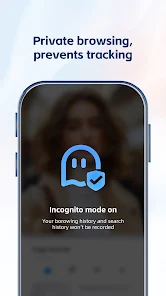
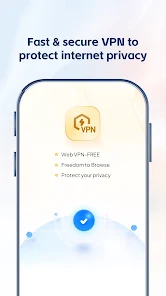
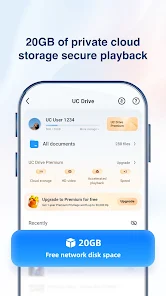
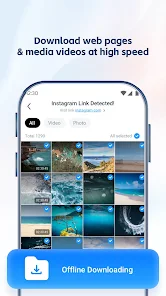
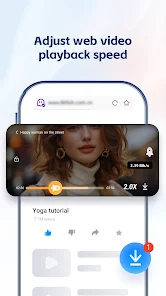
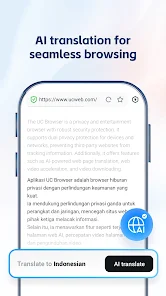
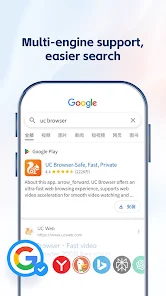
UC Browser is a mobile browser developed by the Chinese company UCWeb and is owned by Alibaba Group. It was first released in April 2004. The browser is available for a variety of platforms, including Android, iOS, Windows Phone, Symbian, BlackBerry, and Java ME. As of October 2014, UC Browser has a global market share of 16.6% according to StatCounter. In China, UC Browser has a market share of 56%. UC Browser is known for its speed and reliability. The browser uses compression technology to reduce data usage and speed up loading times. UC Browser also features an ad blocker and download manager.
Features & Highlights
UC Browser has carved a niche for itself in the crowded market of mobile browsers, and it’s easy to see why. With a variety of features designed to enhance user experience, this browser stands out for its speed and functionality.
Real Experience Using UC Browser
Application Scenarios
My daily routine often involves a mix of work and leisure, and UC Browser fits perfectly into both. While commuting, I use the app to catch up on emails and read the latest articles. The fast downloading feature has been incredibly helpful when I need to quickly access documents or files. Additionally, during lunch breaks, I frequently indulge in video streaming. UC Browser’s data-saving mode ensures that I can enjoy my favorite shows without burning through my data allowance.
User Experience
The user interface of UC Browser is sleek and intuitive. The home screen displays frequently visited sites and a news feed tailored to my interests, making it easy to navigate. I appreciate the seamless workflow—opening new tabs, switching between them, and bookmarking pages is effortless. Performance-wise, UC Browser is impressively fast. I rarely experience lag, even when loading content-heavy sites. Overall, my experience has been overwhelmingly positive; the browser feels responsive and well-optimized for both casual browsing and work-related tasks.
Pricing
UC Browser is free to download and use, which is a significant advantage for users looking for a powerful browser without the price tag. While the app includes ads, they are generally non-intrusive, and the built-in ad blocker mitigates this issue effectively. For users who want a premium experience, there are options for additional features, but the free version is robust enough for everyday needs.
Updates & Support
The development team behind UC Browser regularly rolls out updates that enhance functionality and security. I appreciate the commitment to continuous improvement, as each update seems to bring new features or fixes. Customer support is reasonably responsive, and I found their help center useful for troubleshooting minor issues. Overall, the support and update frequency add to a reassuring user experience.
Security & Privacy Review
In today’s digital age, security and privacy are paramount, especially for American users who are increasingly concerned about data protection. UC Browser is available on major app stores, including the App Store and Google Play, which adds a layer of credibility. However, users should be aware of the registration requirements. While the app does not mandate personal data for basic use, optional features may require some information. I recommend reviewing the privacy policy for clarity on data handling practices.
Another consideration is the presence of ads and tracking behavior. UC Browser does feature ads, but with the built-in ad blocker, users can minimize exposure to intrusive advertising. Additionally, the app does engage in some tracking to personalize user experiences, but transparency is key. I suggest users familiarize themselves with the privacy settings to manage their data according to their comfort level. Overall, while UC Browser is a solid choice, maintaining awareness of security practices is essential for a safer browsing experience.

 Enjoy lightning-fast browsing speeds for a seamless online experience. Experience enhanced privacy features that protect your personal information. Access a built-in ad blocker for an uninterrupted browsing session. Download files quickly and efficiently with optimized download management. User-friendly interface makes navigation simple and intuitive for everyone.
 Limited support for standard web features may hinder user experience. Privacy concerns arise from data collection practices. Frequent ads can disrupt browsing and slow down performance.
  Google Play
  App Store

I've been using UC Browser for years and set it as a default app. I liked how the bookmarks are saved and incognito mode. I don't like every time after you update, so many ads and nonsense news show up, but somehow I managed it. That was tolerable, but now I hate it. Two biggest issues by now. I was using it to watch video, sometimes it can be so buffering. Then I tried exactly same video with Chrome, much faster. After that everytime I can't open a page with UC, I try with Chrome, open right away. The second thing happens to me is that everytime I'm trying to type on UC, the keyboard would always disappear when you just start to type 2,3 letters. It never happened with other browser. I'm thinking it's time to change my default settings.
Used this for years. After update, I can no longer zoom in to make text bigger and have the whole page rescale. That's WHY I was using it in the first place. VERY DISAPPOINTED and I'm not the only one complaining about this. What a stupid feature to remove! So I'll switch to something else so I can save my poor eyes! EDIT: The browser now supports the whole scale zoom and I'm very happy to begin using it again. THANK YOU development team!
From my experience using this browser on multiple devices I have to say that this browser is really not that good. The only reason I'm giving this browser three stars instead of two is because it's the only browser I know of that can download torrents, I didn't actually try downloading any torrents though. Anyways, it's pretty slow on most of my devices and even on the one device where it wasn't slow, it's still not the fastest browser I've used. The built in ad blocker didn't actually seem to block ads, even with the powerful ad blocker turned on. There are some sites that I tried that think this browser is outdated. Also, while I don't mind the built in video player, I noticed that, at least on some sites, it would cause an issue where if you tried to full screen the video too fast it would just show a black screen. Then I also had a device specific issue on my tablet (HP 7, running android 4.1.2), where almost every website gave me an error saying that the connection wasn't secure and it refused to let me use those sites. I didn't have this issue on any of the other three devices.
Bogus. This was an excellent app. Now it's slow, lags while YouTube streaming (on broadband WiFi for crying out loud) but the final insult is that I cannot turn off Facebook notifications which have been greyed out. So now my phone keeps getting multiple notifications for the same item. I do not have the inclination to spend time figuring out how to disable them, that is not something that should be set as a default. Deleting app, I'm done.
This app is great BUT it's slow when scrolling up/down. Very janky and laggy. I also want to get rid of the annoying links that are in the homescreen of the app that you can't remove/add like google and trip advisor. It needs to have a chrome browser extension on pc that WORKS so i can sync my bookmarks on mobile and pc. I would also like a search bar in my notification menu (dolphin browser has both). I really want to like this browser. So i will keep an eye out, check in every once in awhile for any improvements. I will change my review/rating until then. Update: I had no background processes when running the app & thank you for responding so i will give you three stars :')
Review Source: Google Play store public user reviews.
Yes, users can submit suggestions or feedback through the official support channels or within the app itself to help improve future updates.
UC Browser-Safe, Fast, Private prioritizes user privacy and does not collect personal data without consent; however, it may collect some non-personal data for performance optimization.
Yes, UC Browser-Safe, Fast, Private allows users to save web pages for offline viewing, making it convenient for use without an internet connection.
You can cancel your subscription through the app settings or your account management section in the app store, following the provided instructions.
The cost of a subscription to UC Browser-Safe, Fast, Private varies depending on the plan chosen, typically starting from a monthly fee with discounts for longer commitments.
Unfortunately, customer numbers cannot be changed after activation. For any concerns, please reach out to customer service for assistance.
After downloading the app, simply follow the on-screen prompts to enter your details and complete the activation process.
You can reach our customer service via the support section in the app or by visiting our website's contact page. We’re here to help!
For reactivation, please contact customer service with your details, and they will guide you through the reactivation process.
You can find customer service contact details in the app's settings under the "Help & Support" section.
1. Upgrade SDK2. Optimize feature experience